Roles
Roles define what users are allowed to do in the platform. Each role contains a set of permissions organized by module and action.
Open Administration → Roles to manage existing roles.
1. Roles list
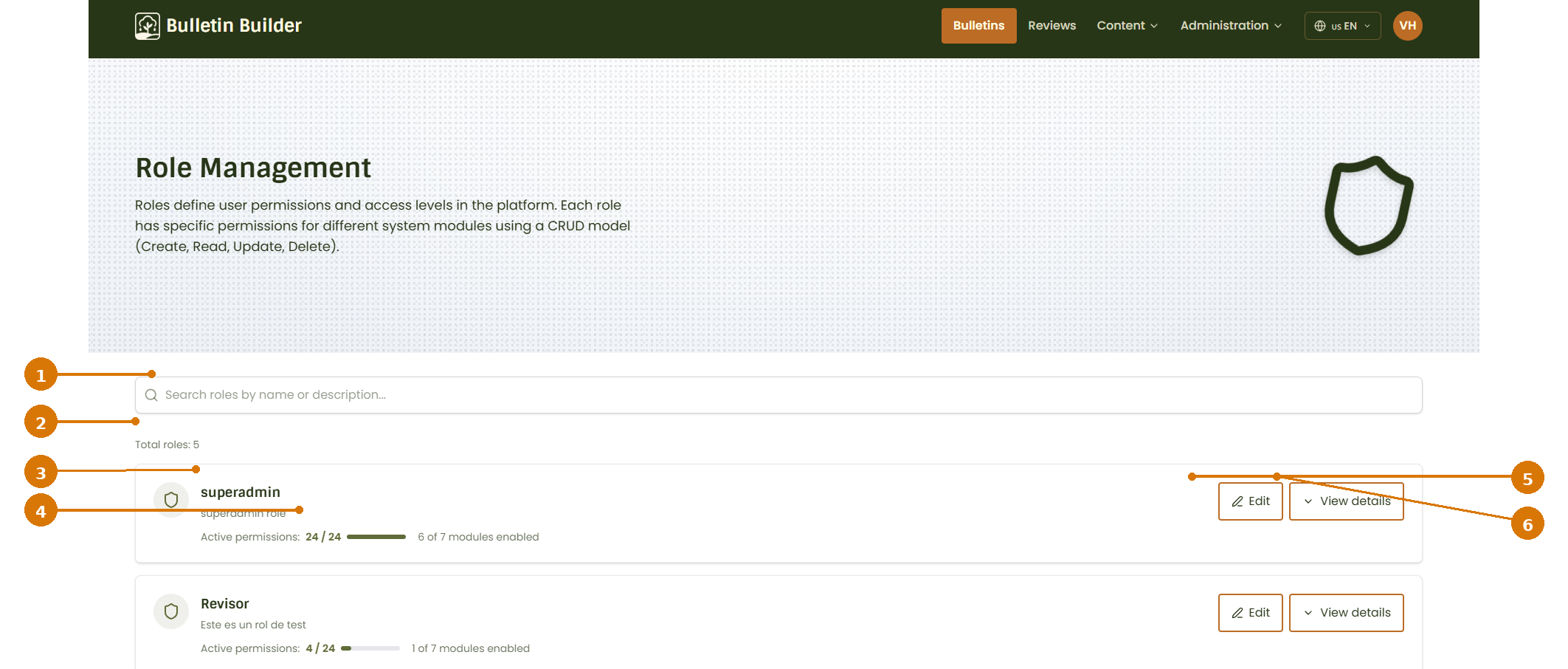
- Search roles — Filters the list by role name or description.
- Total roles — Shows the number of roles currently available.
- Role information — Displays the role name and description.
- Permission summary — Shows how many permissions are active and how many modules are enabled for the role.
- Edit — Opens the role editor.
- View details — Opens the role details view so you can inspect the role configuration without changing it.
Create and delete actions
The current Role Management does not have Create Role or Delete Role actions. Roles can be searched, reviewed, and edited from this screen.
2. Understand role permissions
Permissions are organized by module and by CRUD action:
| Permission | What it allows |
|---|---|
| Create | Create new records or content in the selected module. |
| Read | View records or content in the selected module. |
| Update | Modify existing records or content in the selected module. |
| Delete | Use the delete/archive action exposed by that module, when available. |
The exact effect of a permission depends on the module. For example, a user may have permission to read Templates but not update them.
3. Edit a Role
From the Roles list, click Edit for the role you want to modify.
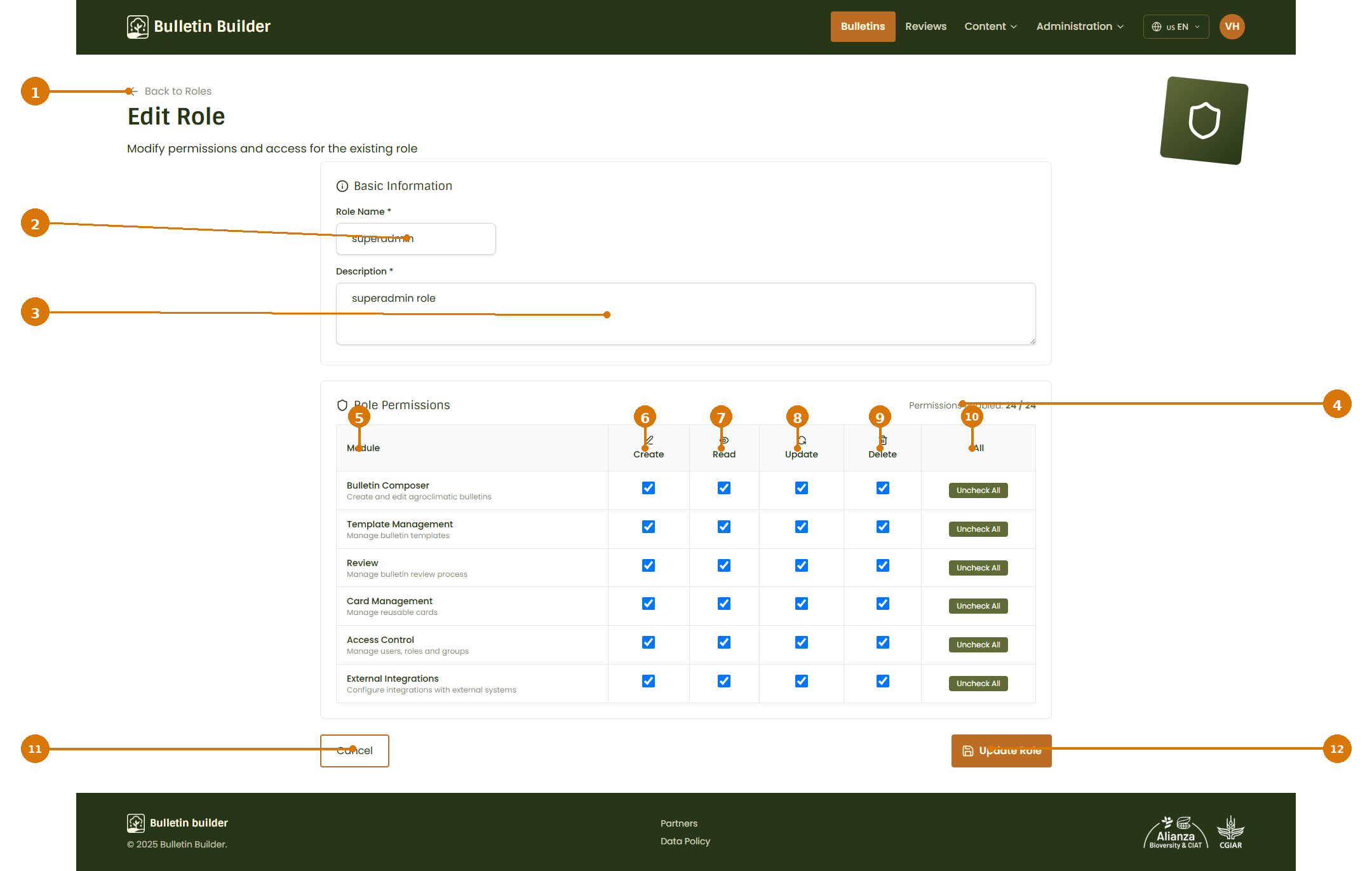
- Back to Roles — Returns to the Roles list.
- Role Name — Changes the name of the role.
- Description — Changes the role description.
- Permissions enabled — Shows the number of permissions currently enabled for the role.
- Module — Lists the platform modules whose permissions can be configured.
- Create — Enables or disables create permission for each module.
- Read — Enables or disables read permission for each module.
- Update — Enables or disables update permission for each module.
- Delete — Enables or disables delete/archive permission for each module.
- All — Enables or disables all available permissions for a module in one action.
- Cancel — Leaves the editor without saving changes.
- Update Role — Saves the updated role name, description, and permissions.
4. Change permissions
To change the permissions assigned to a role:
- Open the role with Edit.
- Find the module you want to configure.
- Select or clear the required Create, Read, Update, and Delete permissions.
- Use the All control when you want to enable or disable the complete permission set for a module.
- Review the Permissions enabled counter.
- Click Update Role.
Permission changes affect users
Changing a role affects users who are assigned that role. Review the permissions carefully before saving.
5. Edit role information
The role name and description can be updated from the same editor.
To update them:
- Change Role Name if required.
- Update the Description so the role's purpose remains clear.
- Review the permission matrix.
- Click Update Role.
A clear description helps administrators understand why the role exists and what level of access it is intended to provide.
6. View role details
From the Roles list, click View details to inspect a role without entering the edit workflow.
Use this option when you only need to review the role's configuration or permission coverage.