Bulletins
The Bulletins module is used to create, review, publish, duplicate, archive, and export agroclimatic bulletins.
Open Bulletins from the main navigation bar to access this module.
1. Bulletins list
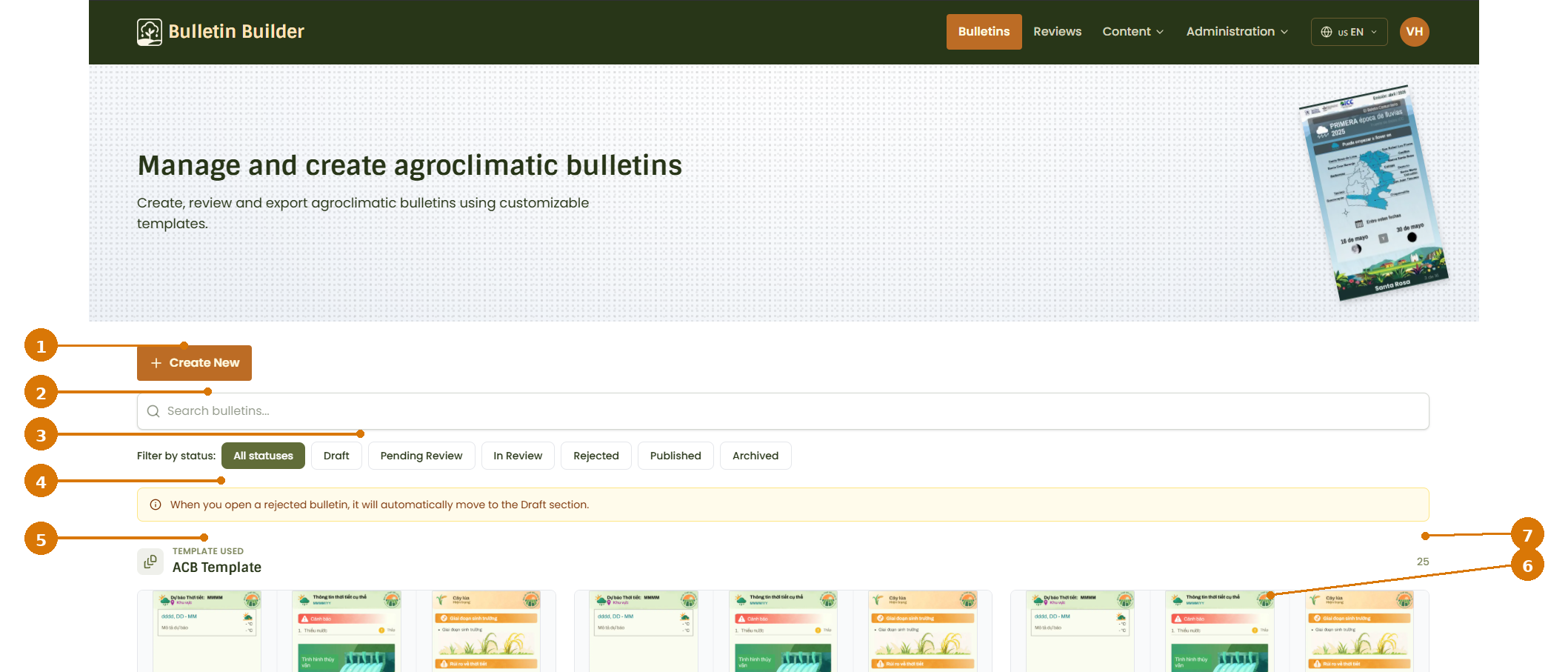
- Create New — Starts the bulletin creation workflow.
- Search bulletins — Filters the bulletin list by name or related content.
- Status filters — Filters the list by status: Draft, Pending Review, In Review, Rejected, Published, and Archived.
- Rejected bulletin notice — Indicates that opening a rejected bulletin automatically returns it to the Draft section.
- Bulletin list / card area — Shows the available bulletins grouped under the current template.
- Bulletin page thumbnails — Shows a quick visual preview of the bulletin pages.
- Total bulletins — Shows the total number of bulletins in the current result set.
Bulletin statuses
- Draft — Working version that can still be edited.
- Pending Review — Waiting for the review process to begin.
- In Review — Currently under review.
- Rejected — Returned for corrections.
- Published — Already published and available through a public link.
- Archived — No longer active, but still stored in the system.
Rejected bulletins
When a rejected bulletin is opened, the interface indicates that it will automatically move back to Draft.
2. Create a Bulletin
To create a new bulletin, click Create New from the Bulletins list.
2.1 Select template
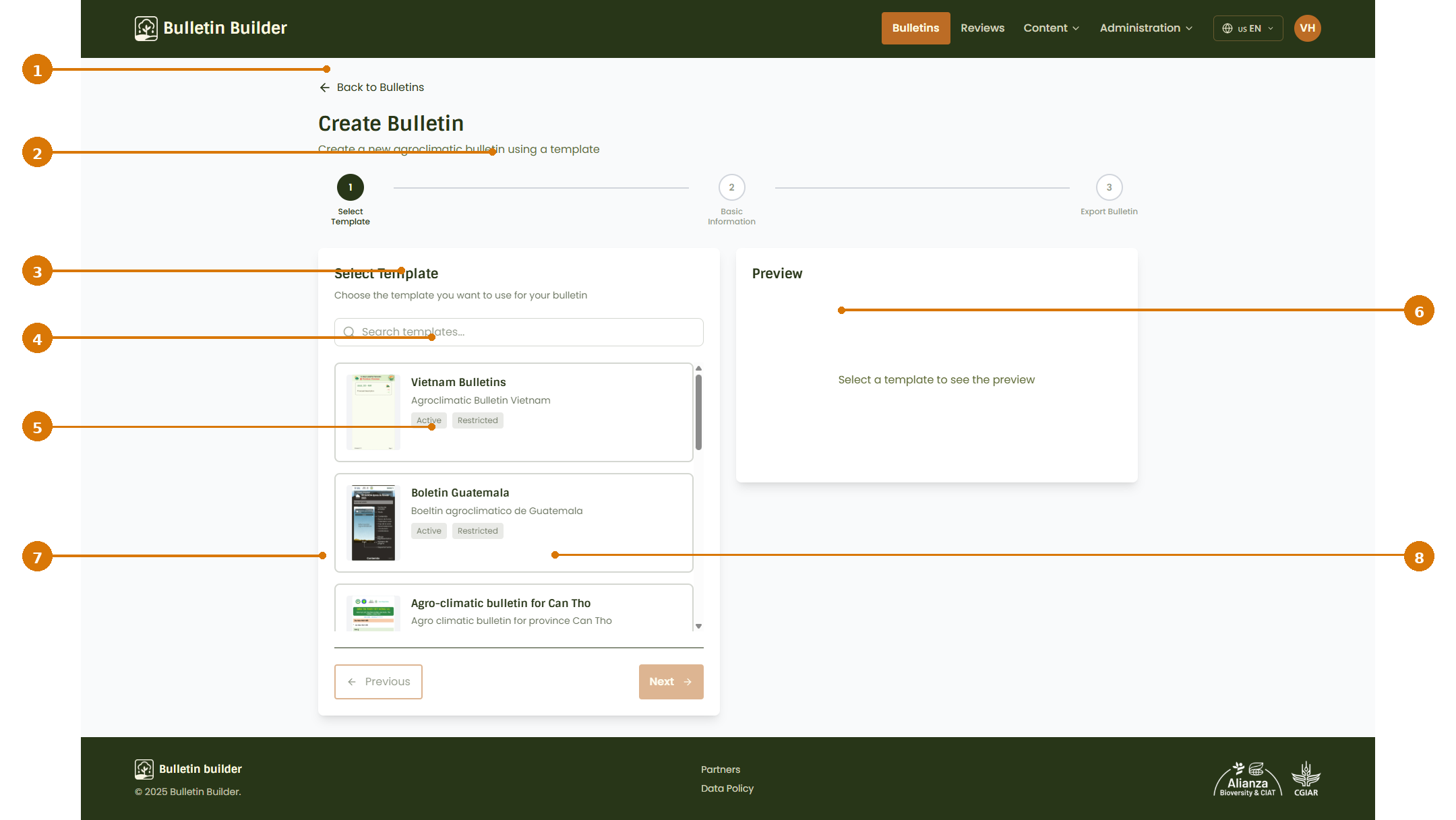
- Back to Bulletins — Returns to the Bulletins list.
- Creation step indicator — Shows the current stage of the creation workflow.
- Search templates — Filters the available templates.
- Template list — Displays the templates that can be used to create a bulletin.
- Template card — Shows a template entry with its name, description, and availability badges.
- Preview — Shows a preview area for the currently selected template.
- Previous — Returns to the previous step when available.
- Next — Continues to the next step after selecting a template.
Create workflow overview
The bulletin creation flow starts by choosing a template. After that, the system expands the process into section-based steps that depend on the template configuration.
3. Complete basic information
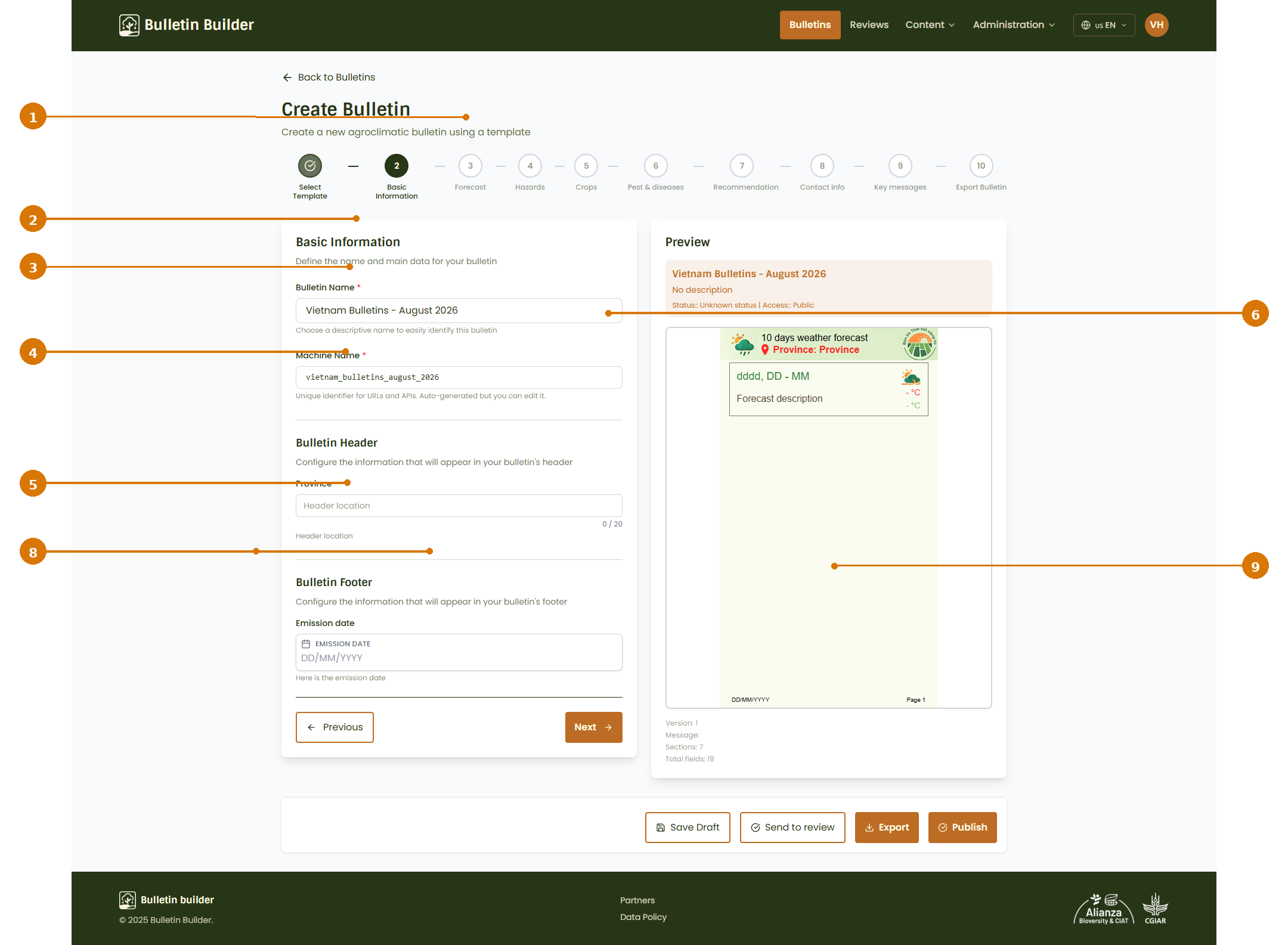
- Section stepper — Shows the bulletin sections configured for the selected template.
- Bulletin Name — Sets the user-facing name of the bulletin.
- Machine Name — Sets the internal identifier used for URLs and APIs. It is usually auto-generated, but it can be edited.
- Bulletin Header fields — Captures header information such as the province or location that should appear in the bulletin.
- Bulletin Footer fields — Captures footer information such as the emission date.
- Preview — Shows a live preview of the bulletin page while data is entered.
- Previous — Returns to the previous step.
- Next — Continues to the next section.
- Action bar — Provides workflow actions such as Save Draft, Send to review, Export, and Publish.
Recommended order
- Enter the Bulletin Name.
- Confirm or adjust the Machine Name.
- Fill in the required Header fields.
- Fill in the required Footer fields.
- Review the preview before moving to the next section.
4. Complete section content
Different templates can contain several content sections such as Forecast, Hazards, Crops, Pest & diseases, Recommendations, Contact info, and Key messages.
The following example shows the Hazards step.
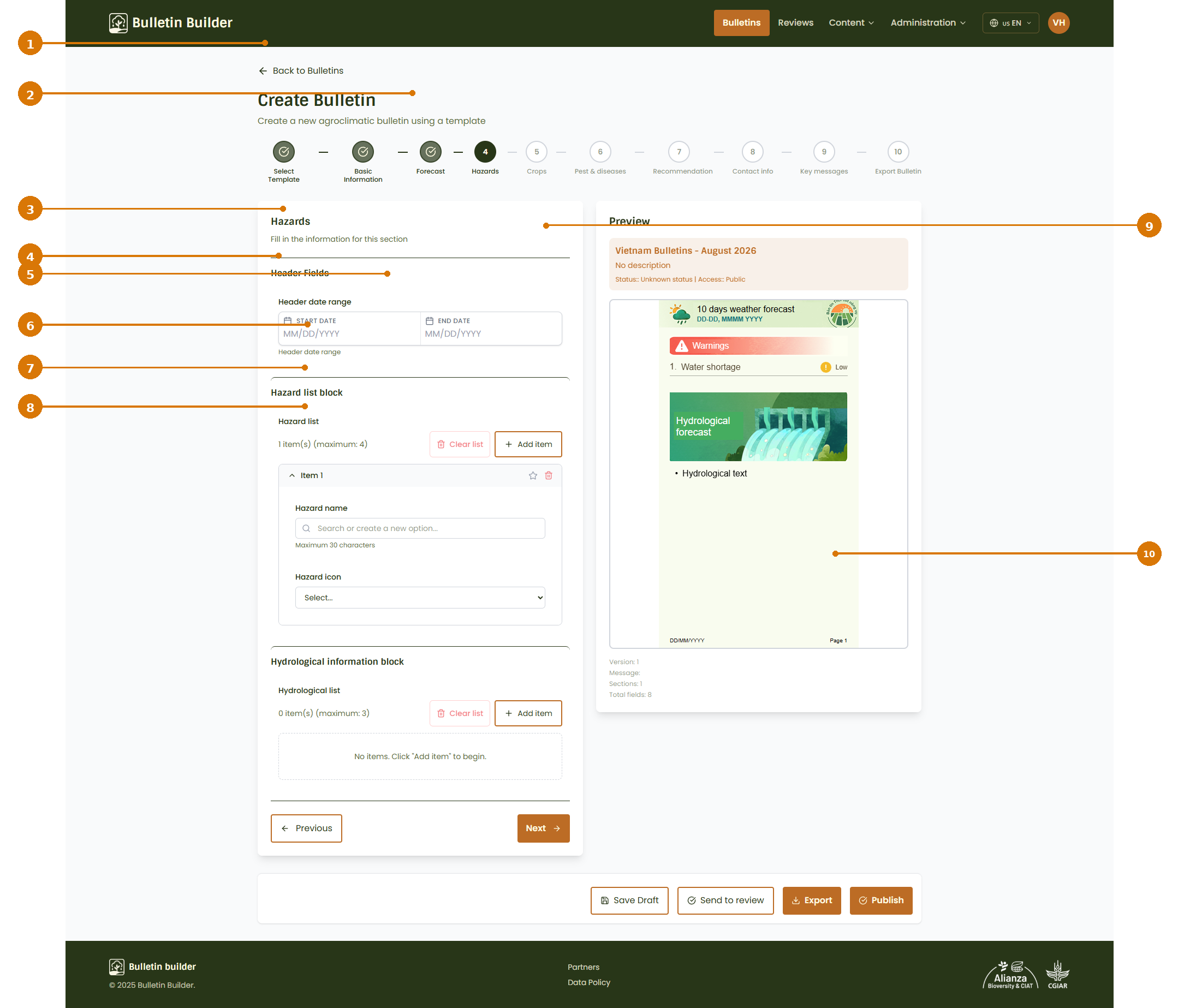
- Section stepper — Shows the current section in the overall creation workflow.
- Header date range — Defines the section date range shown in the section header.
- Hazard list block — Container for hazard items.
- Add item — Adds a new hazard item to the list.
- Hazard name — Field used to enter or select the hazard label.
- Hazard icon — Field used to select the icon associated with the hazard.
- Hydrological information block — Container for hydrological items.
- Add item — Adds a new hydrological item.
- Preview — Shows how the section will appear in the bulletin.
- Action bar — Shows the workflow actions available for the bulletin.
Working with repeatable items
Some sections include repeatable lists.
- Use Add item to insert a new element.
- Use the item controls inside each block to manage the list entries.
- Use the preview to validate how each item is rendered.
5. Export Bulletin step
After completing the bulletin sections, open the Export Bulletin step.
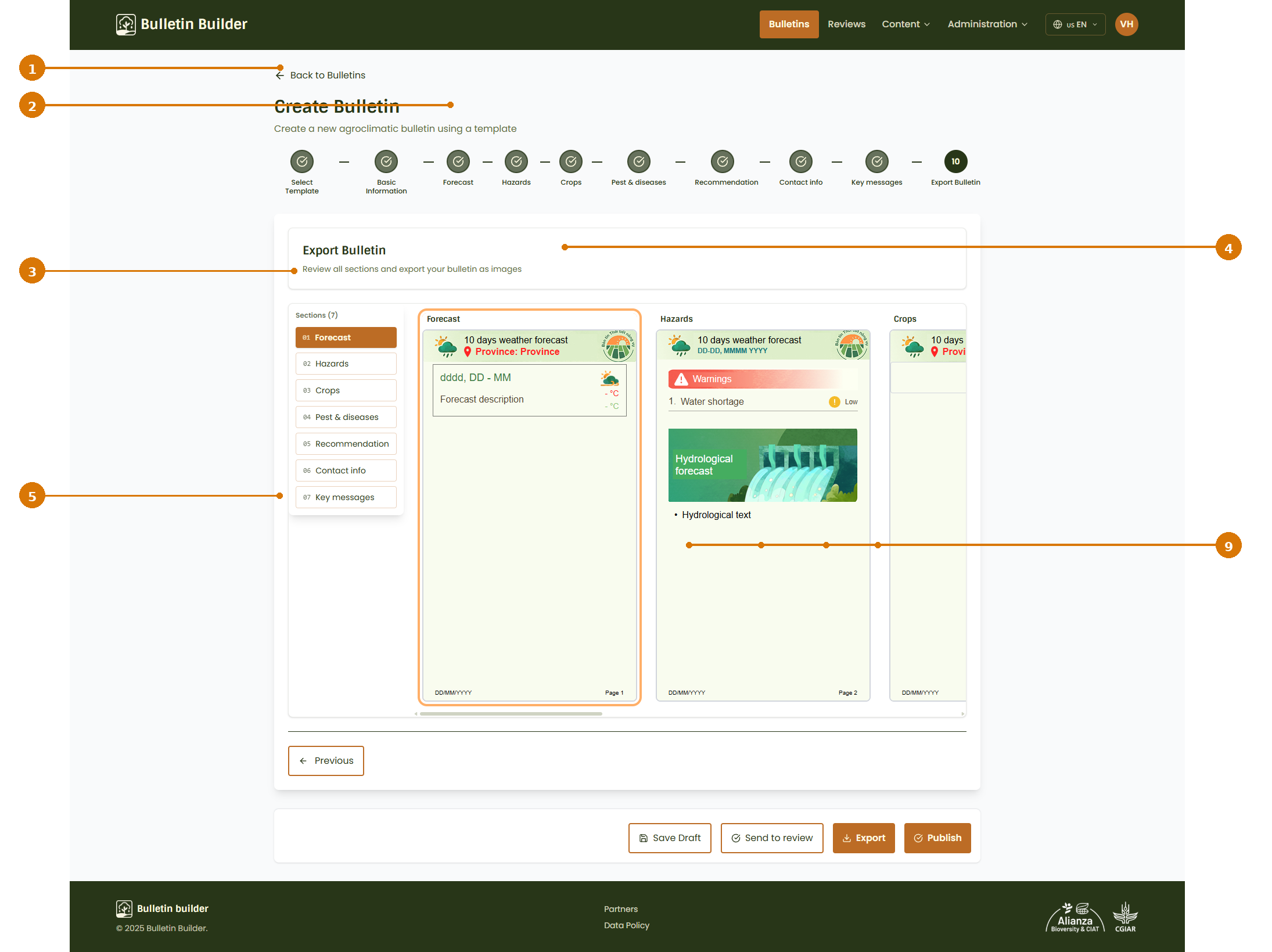
- Section stepper — Shows that the workflow has reached the export stage.
- Sections list — Lists the sections included in the bulletin.
- Selected section — Highlights the section currently selected in the left panel.
- Preview pages — Displays the pages that will be exported.
- Previous — Returns to the previous section.
- Save Draft — Saves the bulletin without submitting or publishing it.
- Send to review — Sends the bulletin into the review workflow.
- Export — Exports the bulletin content.
- Publish — Publishes the bulletin when it is ready.
Export view
The export step is intended for final review of the generated pages before exporting or publishing.
6. Edit a Bulletin
To update an existing bulletin, open it in edit mode.
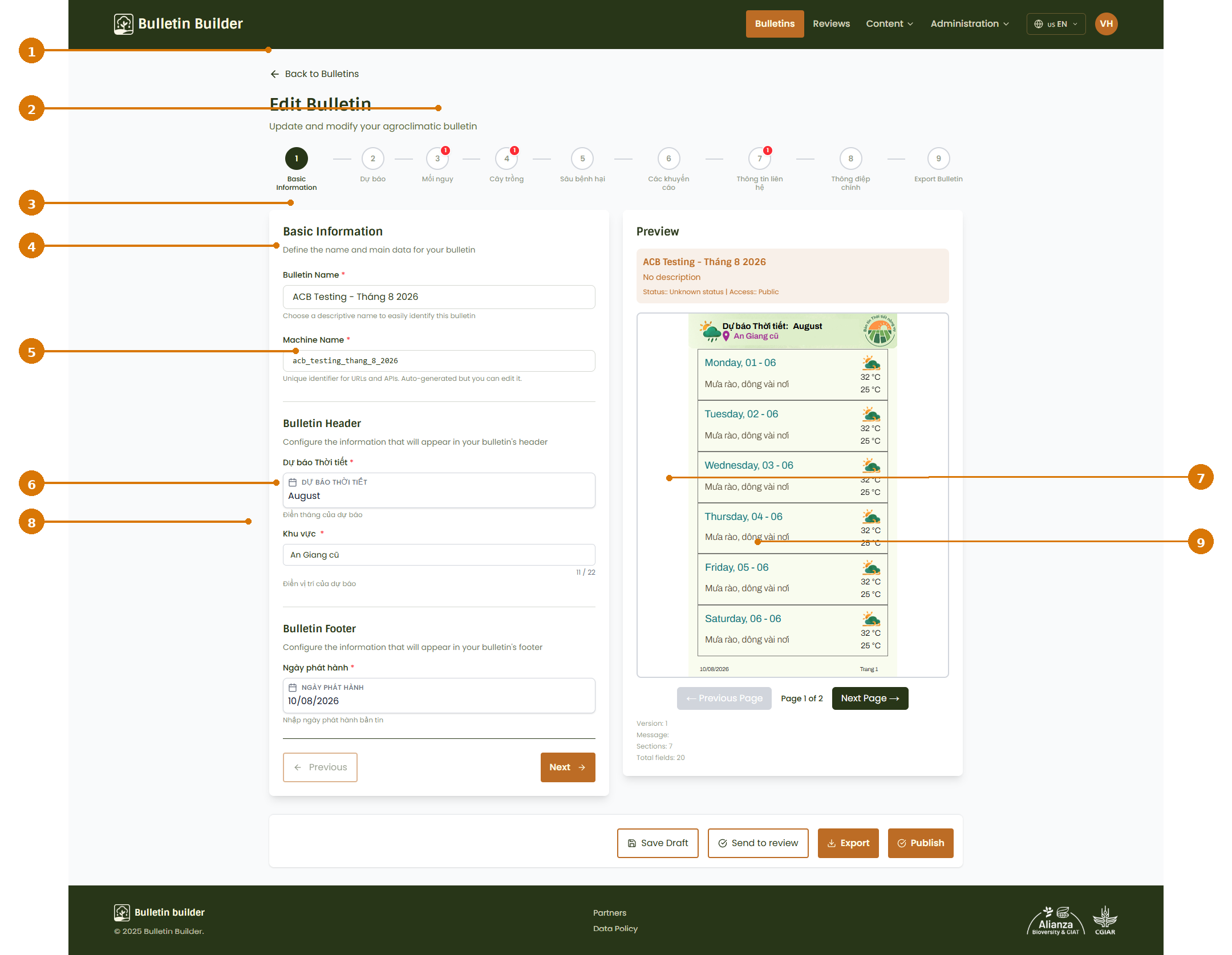
- Back to Bulletins — Returns to the main bulletin list.
- Step indicator — Shows the configured sections and may display validation markers or notifications on specific steps.
- Bulletin Name — Updates the bulletin title.
- Machine Name — Updates the internal bulletin identifier.
- Header fields — Updates the header information shown in the bulletin.
- Footer fields — Updates footer information such as the emission date.
- Preview with page navigation — Shows the bulletin preview and allows navigation across pages.
- Step navigation — Moves backward or forward in the editing workflow.
- Action bar — Includes Save Draft, Send to review, Export, and Publish.
Notes on editing
- The step labels may appear in the content language configured for the selected template.
- If a section needs attention, the step indicator can show notification markers.
- The preview can span multiple pages, depending on the bulletin content.
7. Duplicate a Bulletin
A bulletin can be duplicated to create a new version based on an existing one.
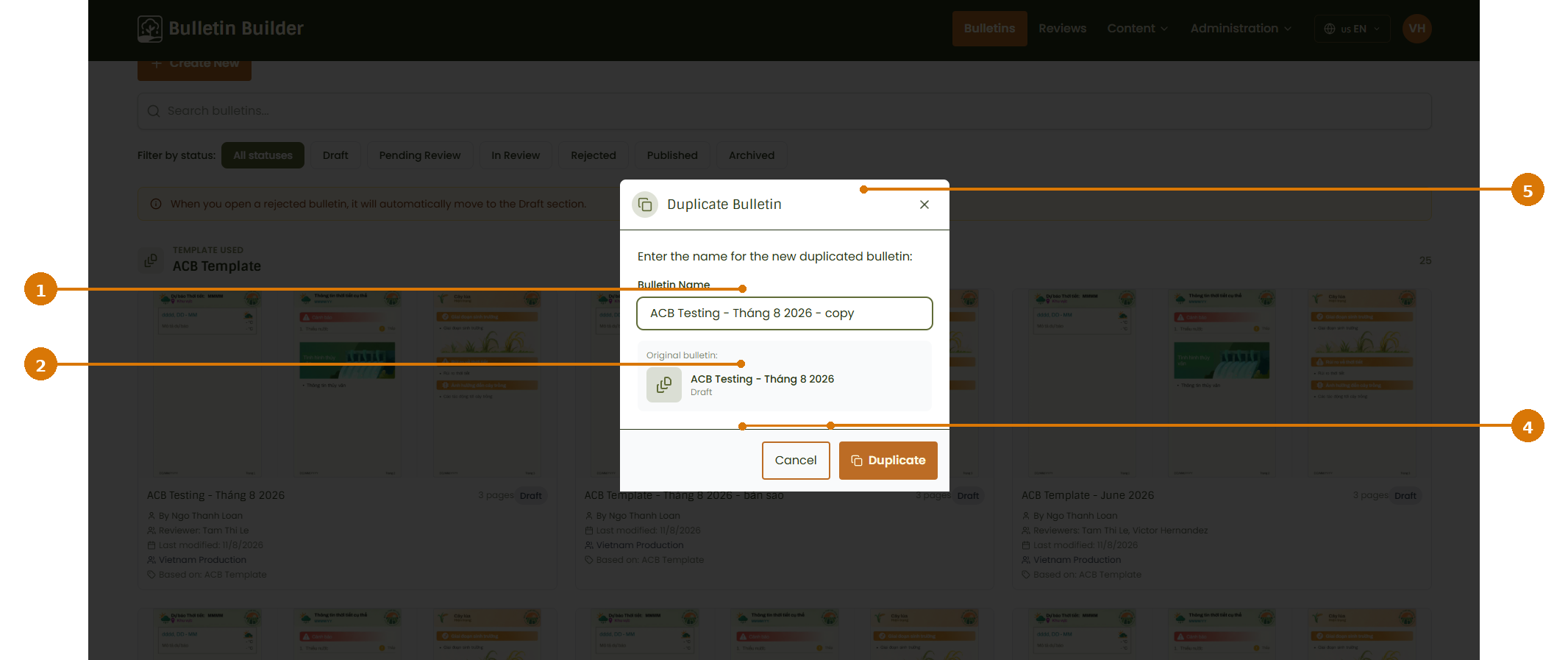
- Bulletin Name — Defines the name of the new duplicated bulletin.
- Original bulletin — Identifies the bulletin used as the source.
- Cancel — Closes the dialog without duplicating.
- Duplicate — Creates the new copy.
- Close — Closes the modal.
To duplicate a bulletin
- Open the duplicate action for the source bulletin.
- Enter or confirm the new bulletin name.
- Review the original bulletin reference.
- Click Duplicate.
8. Published bulletin dialog
When a bulletin is already published, the system can show the public sharing dialog.
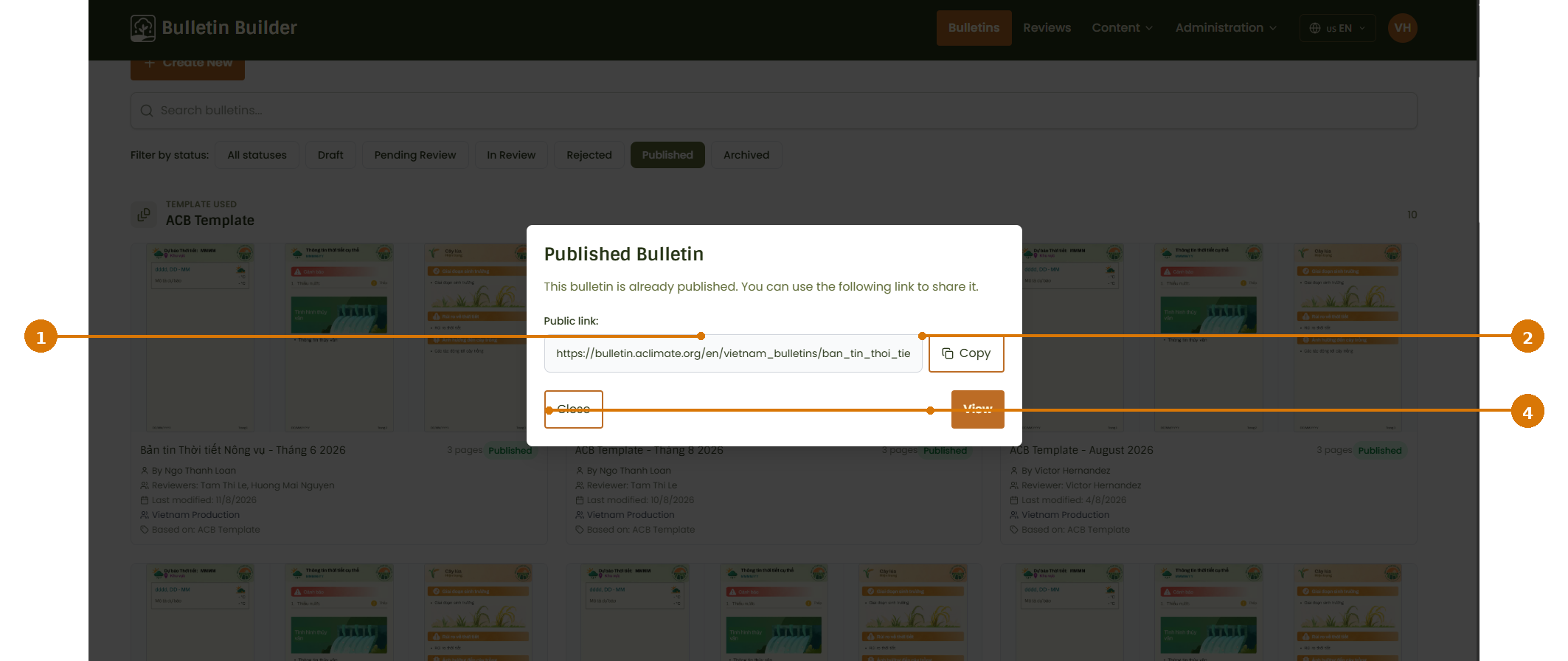
- Public link — Shows the public URL of the bulletin.
- Copy — Copies the public link.
- Close — Closes the dialog.
- View — Opens the published bulletin.
Publishing result
Once a bulletin is published, the public link becomes the main way to share or open the published version.
9. Archive a Bulletin
A published or existing bulletin can be moved to archived status.
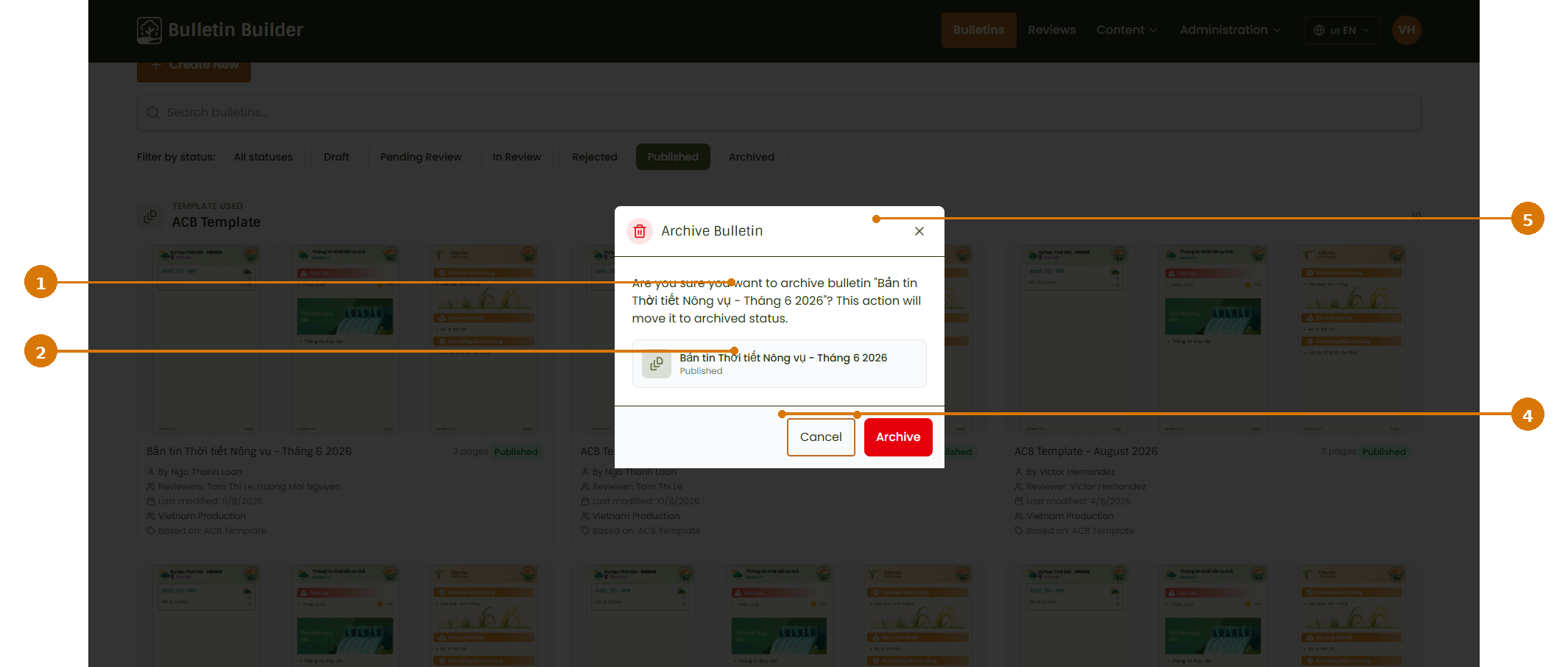
- Confirmation message — Explains that the selected bulletin will be moved to archived status.
- Bulletin reference — Confirms exactly which bulletin will be archived.
- Cancel — Stops the archiving action.
- Archive — Confirms and archives the bulletin.
- Close — Closes the modal.
Archive action
Archiving changes the bulletin status to Archived. It is not the same as deleting the bulletin.
10. View exported pages and reorder sections
The following screen shows a page view that supports section ordering before export.
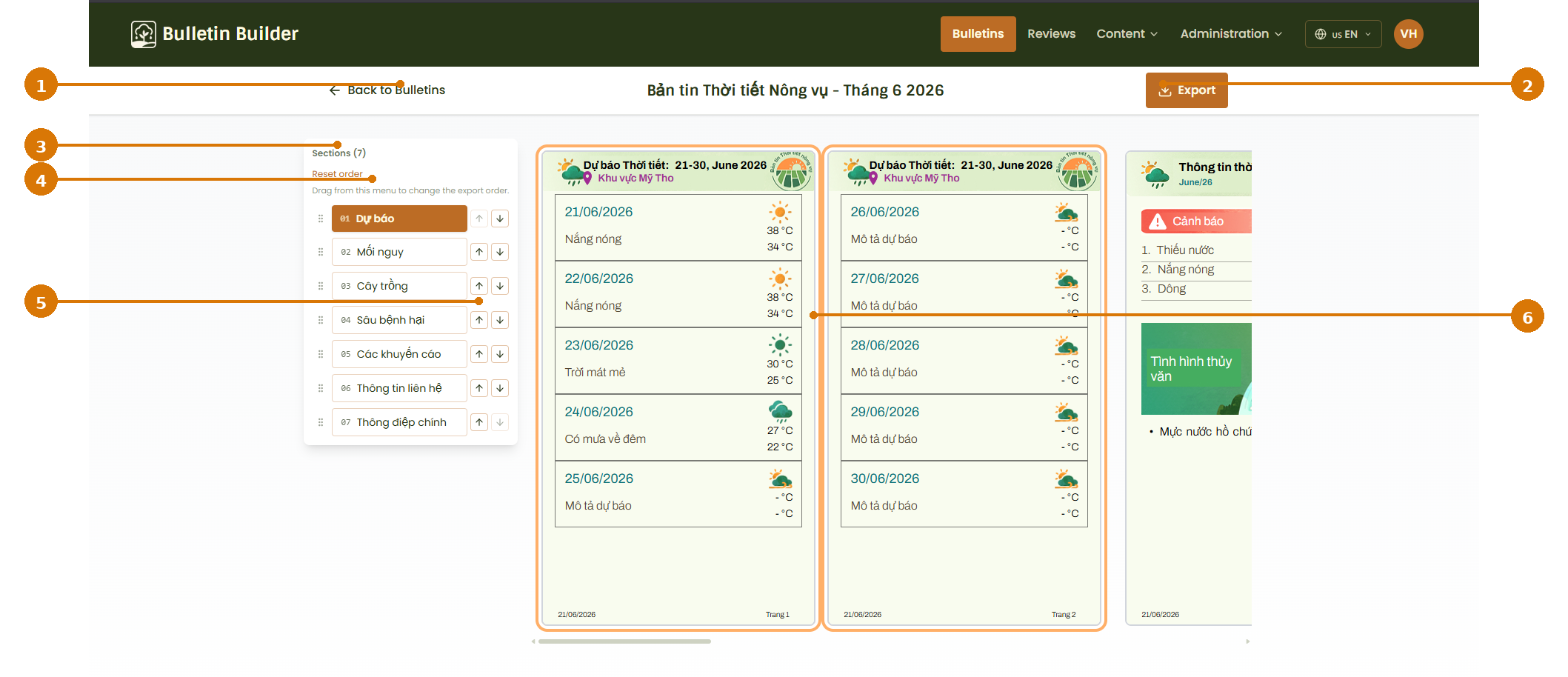
- Back to Bulletins — Returns to the previous screen.
- Export — Exports the bulletin from this view.
- Sections panel — Lists the sections currently included in the bulletin.
- Reset order / drag area — Indicates that the section order can be managed from this menu.
- Reorder controls — Moves sections up or down in the export order.
- Page preview area — Displays the current bulletin pages.
Reordering sections
Depending on the interface version, sections can be reordered using one or both of these methods:
- the drag handle in the sections list;
- the up/down arrow controls.
Use the preview area to validate the result of the new order before exporting.
11. Example Bulletin JSON
The bulletin data is separated into two main objects:
master— Stores the bulletin identity, template reference, access configuration, status, and current version reference.current_version— Stores the versioned bulletin content. In Bulletins, this content is stored indatarather thancontent.
The values entered by users in the creation or editing workflow are stored in the corresponding field's value property.
{
  "master": {
    "_id": "bulletin-master-august-2026",
    "bulletin_name": "Vietnam Bulletins - August 2026",
    "name_machine": "vietnam_bulletins_august_2026",
    "description": "Agroclimatic bulletin for August 2026",
    "base_template_master_id": "template-master-vietnam",
    "base_template_version_id": "template-version-7",
    "current_version_id": "bulletin-version-1",
    "access_config": {
      "access_type": "restricted",
      "allowed_groups": [
        "group-vietnam-production"
      ]
    },
    "status": "draft",
    "thumbnail_images": [
      "/bulletins/vietnam_bulletins_august_2026/page-1.png"
    ],
    "log": {
      "created_at": "2026-08-14T09:30:00-05:00",
      "creator_user_id": "user-123",
      "creator_first_name": "Victor",
      "creator_last_name": "Hernandez"
    }
  },
  "current_version": {
    "_id": "bulletin-version-1",
    "bulletin_master_id": "bulletin-master-august-2026",
    "version_num": 1,
    "commit_message": "Initial draft",
    "previous_version_id": null,
    "log": {
      "created_at": "2026-08-14T09:30:00-05:00",
      "creator_user_id": "user-123",
      "creator_first_name": "Victor",
      "creator_last_name": "Hernandez"
    },
    "data": {
      "style_config": {
        "font": "Arial",
        "background_color": "#ffffff",
        "bulletin_width": 800,
        "bulletin_height": 1200
      },
      "header_config": {
        "style_config": {
          "background_color": "#eef5d8"
        },
        "fields": [
          {
            "field_id": "province",
            "display_name": "Province",
            "type": "text",
            "label": "Province",
            "form": true,
            "bulletin": true,
            "print": true,
            "validation": {
              "required": true,
              "max_length": 20
            },
            "value": "An Giang"
          }
        ]
      },
      "sections": [
        {
          "section_id": "forecast",
          "display_name": "Forecast",
          "page_title": "Forecast",
          "background_url": [],
          "order": 1,
          "icon_url": "",
          "repeatable": false,
          "skippable": false,
          "style_config": {
            "background_color": "#fffef0",
            "padding": "16px"
          },
          "blocks": [
            {
              "block_id": "forecast_information",
              "display_name": "Forecast information",
              "style_config": {
                "gap": "8px"
              },
              "fields": [
                {
                  "field_id": "forecast_description",
                  "display_name": "Forecast description",
                  "type": "text",
                  "label": "Forecast description",
                  "form": true,
                  "bulletin": true,
                  "print": true,
                  "validation": {
                    "required": true,
                    "max_length": 255
                  },
                  "value": "Scattered rain is expected during the forecast period."
                }
              ]
            }
          ]
        },
        {
          "section_id": "hazards",
          "display_name": "Hazards",
          "page_title": "Hazards",
          "background_url": [],
          "order": 2,
          "icon_url": "",
          "repeatable": false,
          "skippable": true,
          "blocks": [
            {
              "block_id": "hazard_list_block",
              "display_name": "Hazard list block",
              "fields": [
                {
                  "field_id": "hazard_list",
                  "display_name": "Hazard list",
                  "type": "list",
                  "form": true,
                  "bulletin": true,
                  "print": true,
                  "value": [
                    {
                      "hazard_name": "Water shortage",
                      "hazard_icon": "warning"
                    }
                  ]
                }
              ]
            }
          ]
        }
      ],
      "footer_config": {
        "fields": [
          {
            "field_id": "emission_date",
            "display_name": "Emission date",
            "type": "date",
            "label": "Emission date",
            "form": true,
            "bulletin": true,
            "print": true,
            "validation": {
              "required": true
            },
            "value": "2026-08-14"
          }
        ]
      }
    }
  }
}
Example values
IDs, URLs, user information, dates, and field values in this example are illustrative. The application generates or resolves these values when the bulletin is created and saved.
Bulletins use data
Template versions store their structure in content, while Bulletin versions store the completed structure and user-entered values in data.